How to book

AllBooked makes booking quick + easy. Follow the steps below to choose your time, confirm your details, and secure your reservation in just a few clicks.
Banner Graphic Image

How to book on a computer

STEP 1

Get the booking link

Get the booking link from the venue. It may be on their website, or you may need to contact the venue directly.

STEP 2

Open the booking link

Copy the link and paste it into the address bar at the top of your browser. If a clickable link was provided, you can simply click it instead.

STEP 3

Follow the on-screen instructions

What happens next depends on the venue and whether you’re already signed in to your AllBooked account.

  • Scenario 1: Some venues let anyone book, so you can book right away without signing in.
  • Scenario 2: If you’ve booked before on this device, the system may recognize you and automatically sign you in.
  • Scenario 3: If the venue requires an account and you already have one, you’ll be asked to sign in.
  • Scenario 4: If the venue requires an account and you don’t have one yet, you’ll be asked to create one before booking.
STEP 4

Identify which booking view you are seeing

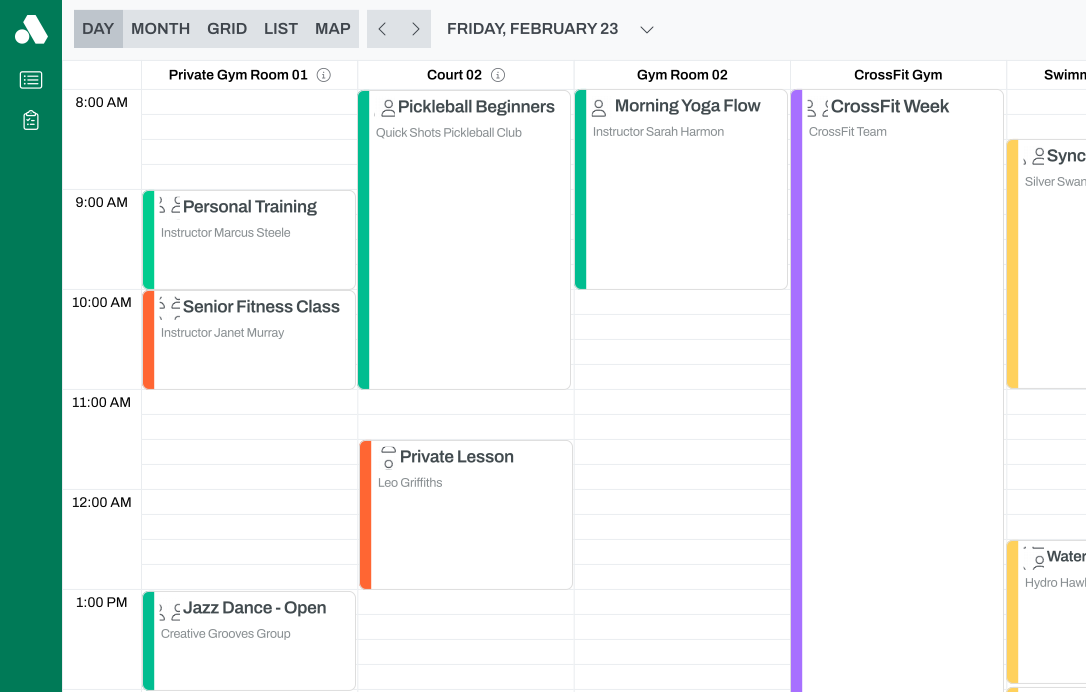
Once you’re in the venue, you’ll land on a booking view. At the top of the page, you’ll see a selector that shows which view you’re using.

Desktop View
STEP 5

Start your booking

Follow the steps below to start your booking. The steps vary depending on the booking view you’re using.

Day view

This tab shows the current day by default. Use the dropdown at the top of the screen to choose the day you want to book.

  1. Find your desired space across the top and your preferred start time down the side, then move your cursor over that area. Use the guide below to understand what you see on your screen.
    • White space: Available to book. Click and drag down to select how long you want the booking to be.
    • Green block: Available time set by the venue. Click the block to book that time.
    • Greyed-out space: Not bookable.
    • Red block: Not available to you due to the venue’s booking rules.
  2. Once you’ve made your selection, click Book at the top of the screen, then move on to step 6.

Note: In Day View, you can simply click the Plus icon in the bottom-right corner of the screen to book as well.
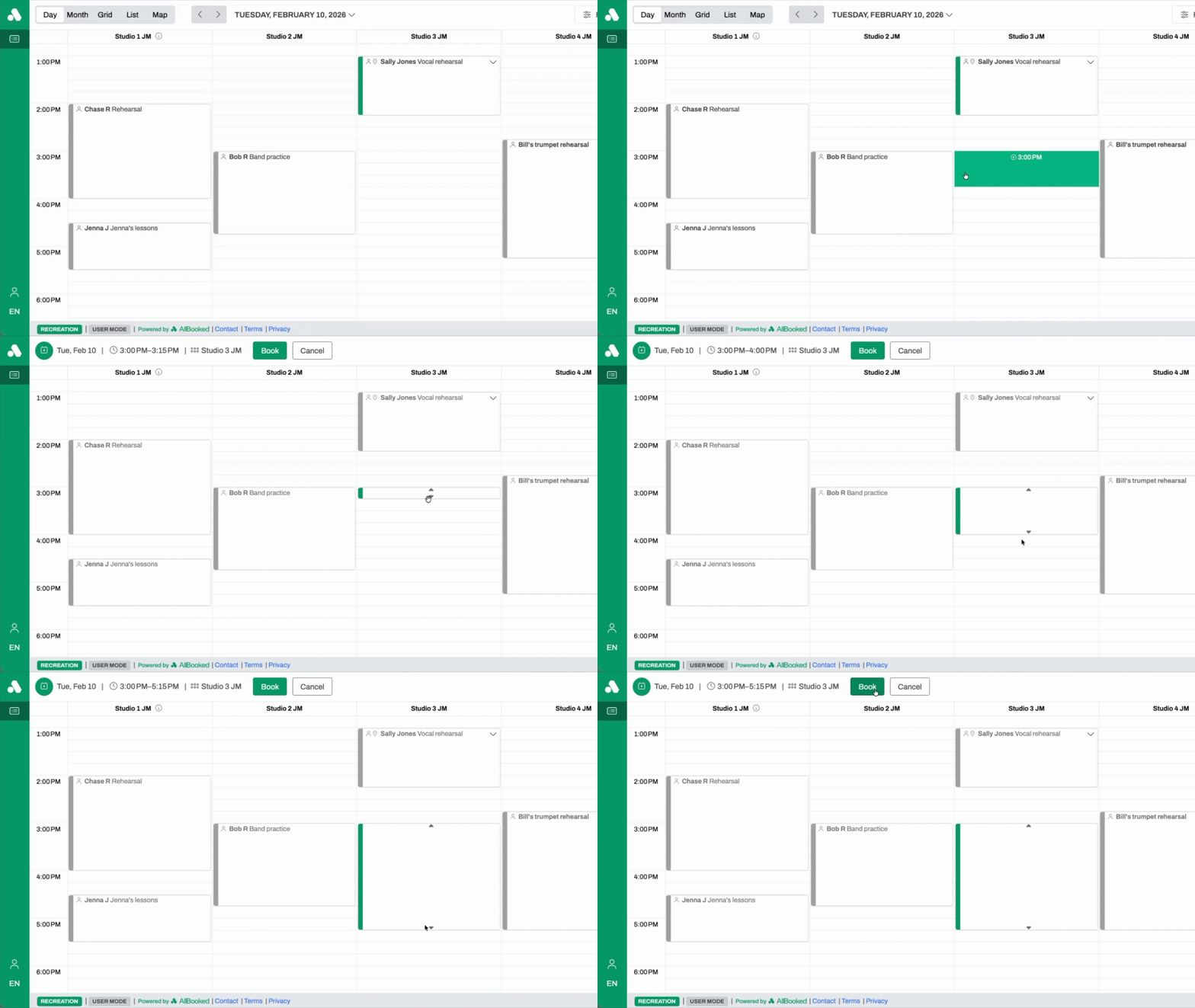
Day View

Map view

This tab defaults to today’s date and time and shows which spaces are available or occupied. Use the dropdown at the top of the screen to select a different day. Once your desired day is selected, review the available spaces to begin your booking.
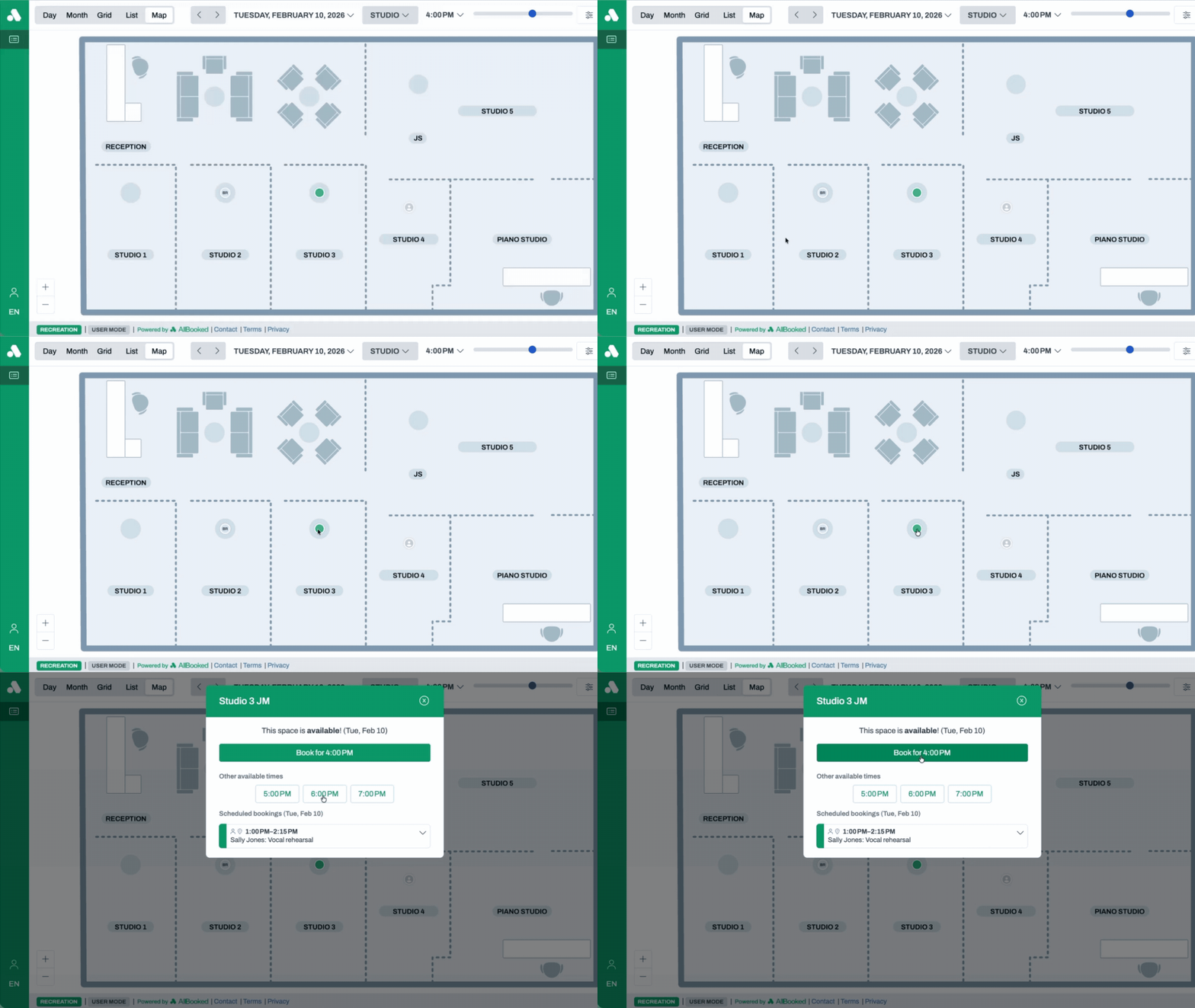
  1. You’ll notice that each space is marked with a dot. The color of the dot indicates the current status of a booking. In all cases, you can click the dot to view and book upcoming availability.
    • Green dot: The space is available to book right now.
    • Grey dot: The space is unavailable at this moment.
  2. Once you’ve clicked on a dot, you’ll be able to easily choose from a list of available times for booking, and you’ll see a list of times that have already been booked.
  3. Click on an available time. Once you’ve made your selection, move on to step 6.
Map view
STEP 6

Confirm your booking details and book!

Home stretch! Review and confirm your booking details, add any extras, complete payment if required, and finalize your reservation.

  1. A screen will open prompting you to select the date, time, and space for your booking. If any selection falls outside your venue’s booking rules, a pop-up will notify you that the space is unavailable.
    • From this screen, you can also create a repeat booking, add a title, or include additional details as needed.
    • If the venue requires payment and you do not have a payment method on file, you will be prompted to add one. If no payment prompt appears, it means a payment method is already saved or the venue will charge you later according to its booking rules.
  2. Tap Confirm your booking to finalize the reservation.
You’re AllBooked! You can now close this tab and head back to your booking.

How to book on a phone

STEP 1

Get the booking link

Get the booking link from the venue. It may be on their website, or you may need to contact the venue directly.

STEP 2

Open the booking link

Copy the link and paste it into the address bar at the top of your mobile browser. If a clickable link was provided, you can simply tap it instead and it will open.

STEP 3

Follow the on-screen instructions

What happens next depends on the venue and whether you’re already signed in to your AllBooked account.

  • Scenario 1: Some venues let anyone book, so you can book right away without signing in.
  • Scenario 2: If you’ve booked before on this device, the system may recognize you and automatically sign you in.
  • Scenario 3: If the venue requires an account and you already have one, you’ll be asked to sign in.
  • Scenario 4: If the venue requires an account and you don’t have one yet, you’ll be asked to create one before booking.
STEP 4

Identify which booking view you are seeing

Once you’re in the venue, you’ll land on a booking view. In the upper left, you’ll see a selector that shows which view you’re using.
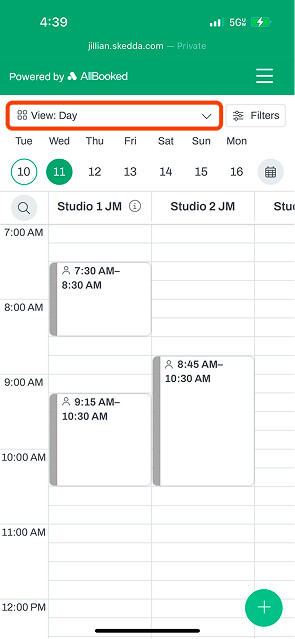
Mobile View
STEP 5

Start your booking

Follow the steps below to start your booking. The steps vary depending on the booking view you’re using.

Day view

This tab shows the current day by default. Tap the day of the week or the calendar icon at the top of the screen to select a different day.

  1. Use your finger to scroll left and right to find your desired space across the top. Then scroll up and down to find your preferred start time. Tap on the white space where you’d like your booking to start. Use the guide below to understand what you see on your screen.
    • White space: Available to book.
    • Greyed-out space: Not bookable.
    • Red block: Not available to you due to the venue’s booking rules.
  2. Once you’ve made your selection, move on to step 6.

Note: In Day View, you can simply click the Plus icon in the bottom-right corner of the screen to book as well.
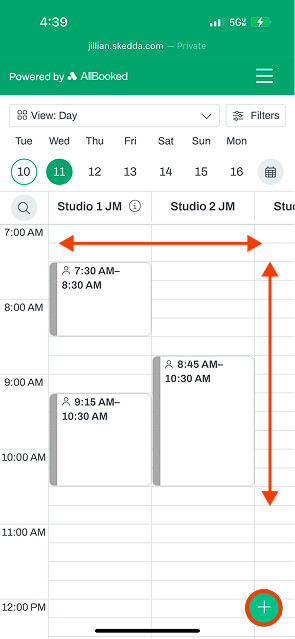
Day View

Map view

This tab defaults to today’s date and time and shows which spaces are available or occupied. Use the dropdown at the top of the screen to select a different day. Once your desired day is selected, review the available spaces to begin your booking.
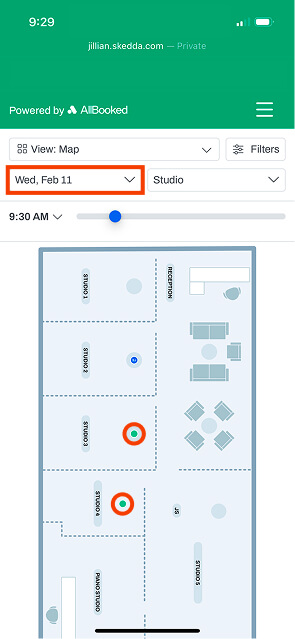
  1. You’ll notice that each space is marked with a dot. The color of the dot indicates the current status of a booking. In all cases, you can click the dot to view and book upcoming availability.
    • Green dot: The space is available to book right now.
    • Grey dot: The space is unavailable at this moment.
  2. Once you’ve clicked on a dot, you’ll be able to easily choose from a list of available times for booking.
  3. Click on an available time. Once you’ve made your selection, move on to step 6.
Map view
STEP 6

Confirm your booking details and book!

Home stretch! Review and confirm your booking details, add any extras, complete payment if required, and finalize your reservation.

  1. A screen will open prompting you to select the date, time, and space for your booking. If any selection falls outside your venue’s booking rules, a pop-up will notify you that the space is unavailable.
    • From this screen, you can also create a repeat booking, add a title, or include additional details as needed.
    • If the venue requires payment and you do not have a payment method on file, you will be prompted to add one. If no payment prompt appears, it means a payment method is already saved or the venue will charge you later according to its booking rules.
  2. Tap Confirm your booking to finalize the reservation.
You’re AllBooked! You can now close this tab and head back to your booking.

FAQs

Have questions about bookings? You’re in the right place. Find answers to our most frequently asked questions below.
Does the venue need me to fill in additional details about my booking?

Some venues require extra information before booking to provide the best possible experience. If a field is marked as required, it must be completed before you can confirm your booking.

I selected a time but got an “unavailable” message. Why?

This usually happens because your selection conflicts with the venue’s booking rules. In many cases, you’ll see a message telling you why your booking was rejected.

Why am I being asked to add a payment method?

If the venue requires payment to secure the reservation and you don’t already have a saved payment method on file, you’ll be prompted to add one before confirming.

What happens if my venue requires check-in and I forget?

If a venue requires check-in and it isn’t completed, the booking may be released for other reservations.

How do I know my booking is confirmed?

Your booking is confirmed once you see a confirmation screen after selecting “Confirm your booking.” You’ll also receive a confirmation email shortly after.

Who should I contact if I need help?

For questions about availability, pricing, or policies, contact your venue directly.

Join over 4,000+ customers already booking with AllBooked.