
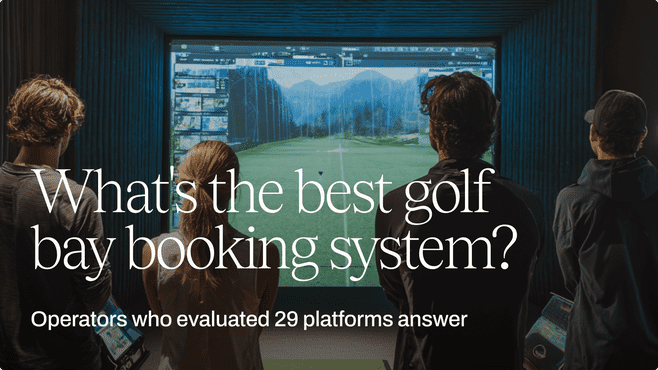
“What booking system should I use for my golf sim?” is one of the most commonly asked questions online across golf sim operator forums.
The problem? Most operators don't know what to look for when evaluating their options. Unfortunately, there’s a high cost to choosing the wrong platform: paying for a subscription that creates more work and making your business adapt to the software.
Brian Stenson, owner of Golf630, evaluated 29 platforms, while Keegan Dagg, Operations Manager of The Green Pinnacle, spent a full week trying to make Trackman’s own booking tool work before doing a month-long deep dive researching golf bay booking applications.
We’re sharing the lessons they learned, how they evaluate tools, and why they chose the platforms they did. By the end, you'll know exactly what a golf bay booking system needs to do, and the questions to ask before you sign on.
Why most operators choose the wrong software first
Dagg said it best: "There isn't really a go-to booking platform in the golf simulator or driving range industry."
The lack of a market leader puts golf sim owners on a goose chase, and pre-launch operators are especially vulnerable. The pressure to “just find a tool” causes them to default to whatever looks easy enough to use. Although they may look simple at first glance, the reality is that many golf sim booking platforms out there lack the functionality to handle the complex nature of the business, including those that come with the simulator software itself.
That gap has a cost. Golf sim bays are disappearing inventory. Every hour that doesn’t get booked is lost revenue, which is why it’s essential to set up operations for maximum utilization. If you aren’t able to configure customized rules on the backend, such as who can book, when they can book, and under what conditions, earning potential is stifled.
Stenson sees it the same way. "It's a hotel model. I have a bay that's available at 12:00, and at 12:01 it's no longer bookable. You lose that revenue."
That's precisely why getting the booking system wrong isn't just an admin problem; it's a revenue problem.
Real evaluations
The lack of a market leader
Dagg, who worked at a driving range prior to becoming Operations Manager at The Green Pinnacle, knew that it’d be a challenge to find a booking platform before he even accepted the job.
"There isn't really anything in the golf simulator or driving range industry that's considered like the go-to."
With the lack of golf bay-specific reservation systems, operators feel forced to just select something, and end up choosing generic booking tools that ultimately don’t work for their business—because they weren’t designed for it. In Dagg’s previous role, they used Acuity, and he experienced the frustration firsthand.
"A lot of people use different booking systems, like salon booking systems. The issue is that it’s built for a salon and way too restricted."
The consequences of choosing the wrong system stuck with him. "I don't want to get locked in and then all of a sudden it's like, oh, we don't have a choice now."
29 platforms later, and he found the fit
Brian Stenson’s evaluation experience reflects the current state of the market. There’s so many options available for golf bay reservation software, that it’s hard to find the best one.
With a background in tech, Stenson knew what he was looking for and evaluated 29 booking platforms with a strict set of requirements before even touching a demo.
"I looked at anything and everything that thought they could do golf reservations and memberships. I had my requirements. This is what I needed to be able to do. I figured that out and then got pretty good demos and shortlisted pretty quickly."
Even those that had potential fell apart.
“There were a couple platforms I thought were promising, but during the demo it would crash,” Stenson says. “I emailed them and they replied, ‘Yeah, it’s been broken for a few days.’”
His experience isn’t uncommon for operators evaluating golf bay booking systems. Without a true market leader, finding a platform that fits the bill often means sifting through dozens of options and lots of trial and error.
If it took Stenson, a tech-savvy operator, a detailed list of requirements, 29 booking platforms, and 3 trials to find the right solution, the average operator starting with a Google search is at a serious disadvantage.
Putting Trackman to the test
As part of Dagg’s search, he decided to give Trackman’s booking tool a shot—after all, it’s one of the gold standards for simulator hardware, and they already use the state-of-the-art equipment at their facility.
Unfortunately, the Trackman booking software didn’t live up to the hardware.
"I probably spent like a week trying to wrap my head around that, but there were just too many things that weren't working."
However, the one plus he noted was that bays would lock until a booking was confirmed, then unlock automatically. “It was kind of cool how it would lock the bay until the booking was there and then it would unlock for them.”
But that's where the strengths ended. Everything else was either missing or too hard to set up.
"We need that 15-minute buffer time. I don't know how anyone operates. People are drinking, eating, we need to clear the table, clean it up. If that doesn’t work, there's a huge difference in the experience."
Even though Trackman makes exceptional simulator equipment, the booking system still has some catching up to do.
So, what’s the criteria for golf simulator booking software?
1. Self-service booking experience
Dagg’s non-negotiable was that he needed an easy way for his customers to book.
"I wanted something that people could take a look at, see what bays we have, get a visual idea of it and check out what's available before logging in."
Here’s why:
- He didn’t want to micro-manage bookings or deal with any booking back-and-forth through calls or emails because he had other, more important things to spend his time on.
- He needed to create a seamless booking process for his customers since every point of friction can lead to lost bookings.
- He needed a way for casual viewers (who didn’t have an account with The Green Pinnacle yet) to explore the calendar and book.
What to look for:
- Customized map of your venue
- Calendar that easily shows what’s free when, and what’s not
- A platform that bakes payment into the booking flow
- The option to set who can see your calendar
- Embeddable booking widget on your website
Pressure test: Can my customers book, pay, and cancel entirely on their own, or do I need to step in at any part of the process?
2. An easy admin backend experience
Stenson "literally spends zero time managing bookings."
As an admin, that’s the goal, but it’s only possible when your golf bay reservation application can be set up exactly the way your venue runs—easily.
If you’re manually adjusting bookings, your software isn’t doing the job you hired it to do, and it costs you in more ways than one:
- Time spent on working around the system
- Money spent on a system that doesn’t work
What to look for:
- Booking and pricing rules by user type, time of day, day of week, space, or duration that you set once
- Membership packages built right into the system that can be set up in a few clicks
- Payments that can be set to come through automatically when a booking is made, or after the fact
- Option to include Add-Ons in the booking flow for clubs, balls, snacks, or beverages
- Integrations for an automated tech stack
Pressure test: Can I set up all the rules and roles on the backend without dedicating more than an hour to it?
3. Automatic buffer time between reservations
One of the most important functionalities for Dagg was to find a system that can be set to automatically add time between reservations. Without it, the customer experience is compromised.
"We need that 15-minute buffer time. I don't know how anyone operates. People are drinking, eating, we need to clear the table, clean it up. If that doesn’t work, there's a huge difference in the experience."
What to look for:
- A booking platform that lets you set customized time between reservations, per space
Pressure test: Can I set up customized buffer times per bay?
4. Flexible pricing rules
Your pricing strategy is how your venue makes money. If your golf bay scheduling application makes it difficult to customize rates and adjust them on an as-needed basis, you’re stifling your own growth.
Dagg notes, "I don't want to get locked in and then all of a sudden it's like, oh, we don't have a choice now."
What to look for:
- Ways to set peak and off peak pricing
- Pricing rules that can be set by user type, time of day, day of week, space, or duration
- Rules that can be layered on top of one another (i.e., Members get 20% off bookings during off-peak hours)
- The flexibility to adjust pricing whenever needed
Pressure test: Can I charge walk-in customers one rate on a specific day, time, duration, and bay, while offering members a different rate for that exact same booking period; and then change it in six months?
5. Mainstream payment processing
Dagg said it best: "If we can't take people's money, there's not a real point."
The key is making payments easy. Easy to set up, easy for customers to pay, and easy for your business to collect.
What to look for:
- Booking systems that have native integrations with mainstream payment processors, like Stripe
- Support for mobile wallets like Apple Pay and Google Pay
- The ability to charge customers at the time of booking, later on, or through invoicing
Pressure test: Can I exempt some customers from making online payments while still requiring others to complete it upon making a booking?
6. Membership management
Memberships create recurring revenue, and are the backbone of a predictable business. They can also drive utilization, with rules that encourage usage like discounts for off-peak bookings, or other incentives that help fill quieter time slots.
Dagg notes that since using memberships, they’ve “managed to increase utilization by at least 20% monthly.”
What to look for:
- A booking platform that lets you set up membership perks exactly how you need to—without settling—through features like tier-based bay access, booking perks, and incentives that drive upgrades
- A way to embed memberships to your website so customers can pay and play in one flow
- A way for golfers to buy and cancel memberships all on their own
Pressure test: Can customers buy a membership on their own and cancel it without your intervention?
7. Integration capabilities
When your software talks to one another, things like door access and data entry run automatically, supporting hands-off workflows, and in some cases, 24/7 operations. That’s why integration capabilities are one of the most important things to look for in a golf bay booking system.
Stenson, who runs his golf sim facility unmanned, notes, “I couldn't do 24/7 without being able to integrate with some door system.”
What to look for:
- Booking platforms with documented articles that walk you through how to set up popular integrations
- Integrations for access control, accounting, waivers, HVAC, smart lighting, and smart plugs
- A 24/7 support team for help setting up integrations
Pressure test: If a customer books a bay for 11 PM on a Tuesday night, can they get into your facility without anyone onsite and without staff manually generating a passcode?
What operators wish they'd known before evaluating
Stenson and Dagg have already done the hard work so you don’t have to. If you take away just three things from their experience, make them these:
1. List out your requirements for a booking software before you even start searching.
Stenson didn’t casually trial 29 booking platforms. He researched them all with a detailed list of requirements, and if a platform didn’t meet them, he moved on. From there, he shortlisted and tried them out firsthand.
Not only did this approach save him time from tinkering around with free trials, but it also helped him avoid being sold on features that he didn’t need when he was on demos.
2. Think about long-term growth. Will the platform be able to grow alongside you or will it hold you back?
As Dagg looks back on his growth, he says that reaching 2,500 customers and 150 members in just a year and a half wouldn't have been possible without software that was building features specifically for golf simulator businesses.
When you’re on the hunt for a new booking tool, be sure to consider what you’ll need down the line, and confirm that the platform either has it, or has plans to build it.
3. Choosing the right booking platform is about more than giving your customers a great experience. It’s a powerful revenue lever.
At first, it might not be obvious that a booking platform does much more than let customers book. But take a closer look, and you’ll find that smooth booking operations give you more time to focus on what actually drives growth.
Take it from Stenson, who says, “If I was taking a quarter of my week and spending it on back-office admin... I'm not available to satisfy my customers, to do the marketing, to do all those other things I need to do to grow the business. So AllBooked’s opening my bandwidth to be able to generate the revenue I need to generate.”